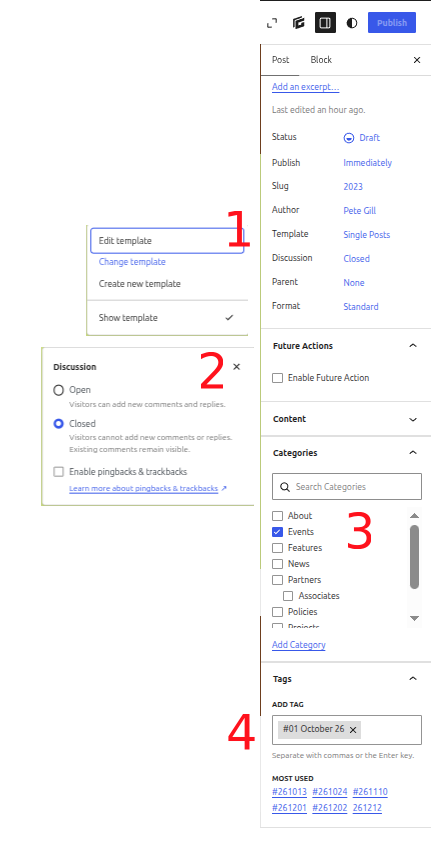
This is the basic checklist for adding any new post
Below are the steps for adding a new Post from scratch, but you may find it easier to just use the ‘Quick Method‘ below.
- From the Dashboard (the black Menu strip on the left of the WordPress screen) choose Posts > Add Post
- You now have to use the ‘Settings’ panel on the right of the screen and assign a Template and Category to your Post. Use the ‘Settings’ panel on the right of the screen, with the ‘Post’ tab selected:
- Click on the words ‘Single Posts’ next to Template and from the flyout choose ‘Change Template’. (Number 1 on screenshot)
- From the next screen, choose the Template from those provided – for the type of post your are adding (i.e. ‘Events posts’, ‘News posts’, ‘Projects’ etc.)
- Now next to ‘Discussion’, click on ‘Open’ and in the dialogue box select ‘Closed’ and untick the ‘Enable pingbacks and trackbacks’ box. This stops people from randomly Commenting on your posts. This is the current site default at present. (Number 2 on screenshot)
- Important: underneath the Categories box, tick the Category in which your Post will appear (again, choose from Events, News, Features etc. If you don’t do this, your post be ‘Uncategorized’ by default and not appear on the page you intend or the home page if applicable (i.e. a Feature post). (Number 3 on screenshot)
- Optional: You can add a ‘Tag’ to your post. This is important for Events posts, as in the list of Event posts, it helps to put them in chronological order. To add a tag, you click in the Tag box, type a hashtag: # then two or three key words (i.e. the date).and finally press ENTER to add the tag. Your tag will appear in the box and could look like this: #1 September 26. (Number 4 on screenshot)
You are now ready to start adding your words and pictures to your post and formatting them. See the relevant posts for how to best do this.
Quick Method: Duplicate an existing Post
Assuming you know what type of post you want to add, the quickest method is to Duplicate an existing Post:
- From the Dashboard menu on the left choose Posts > All Posts
- This will present a list of all the site’s posts.
- To choose from the Category from which you want to Duplicate a Post, use the ‘All Categories’ drop down at the top, select the post type you want and click ‘Filter’.
- Now hover over a post title and you will see a list of options pop up uderneath. the last one is Duplicate. Click on it.
- You will be presented with a ‘Draft’ duplicate in the list. Hover again, choose Edit and all you have to do is change the Title (which will rename the post) and the Content. When that is done, ‘Publish’ it.